Click Gui
The click GUI
Each panel's header shows an icon for its category next to the name.
The Grizzly pane lists every category. Click one to show or hide its panel; the rows look like module rows, with a shown panel filled in your theme colour like an enabled module. Configs at the bottom does the same for the config panel. Combat, Movement, Render, Player, World, Utility and Other show by default, along with the config panel, and the rest stay hidden until you turn them on. The Grizzly pane has the first column to itself, and a panel you turn on takes the first free spot after it.
Which panels show is saved to config/medved/clickgui_layout.json, apart from your configs, so
loading a config never changes it. Like any panel, the Grizzly pane can be dragged by its header
and collapsed with a right-click.
Number and range sliders can also be set exactly: click the value on the right to type it, then
press Enter. A range takes both numbers, like 3-5, and anything outside the setting's limits is
brought back inside them.
Mode
Choose the click GUI layout style.
- DROPDOWN: dropdown-based interface
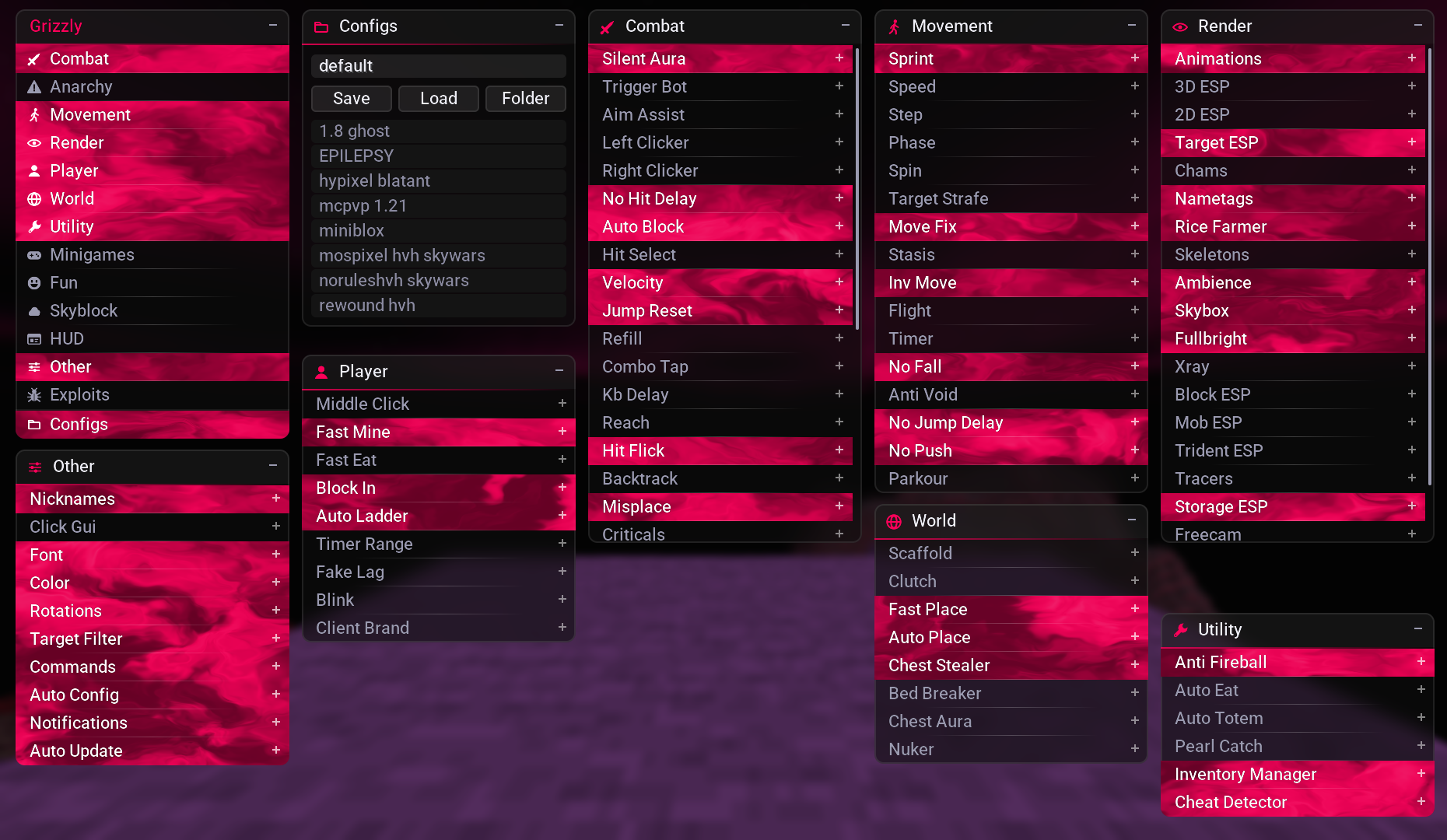
Show descriptions
Display module descriptions in the GUI when using dropdown mode. Hovering a config in the config panel shows what it says about itself too: its description, the anticheat and servers it was made for, the categories it covers when that isn't all of them, and whether it's an online config or saved on this computer.
Show background
Render a background behind the GUI.
Blur background
Blur the game behind the GUI and frost every panel, so it shows through softly. On by default. Only shown with Show background.
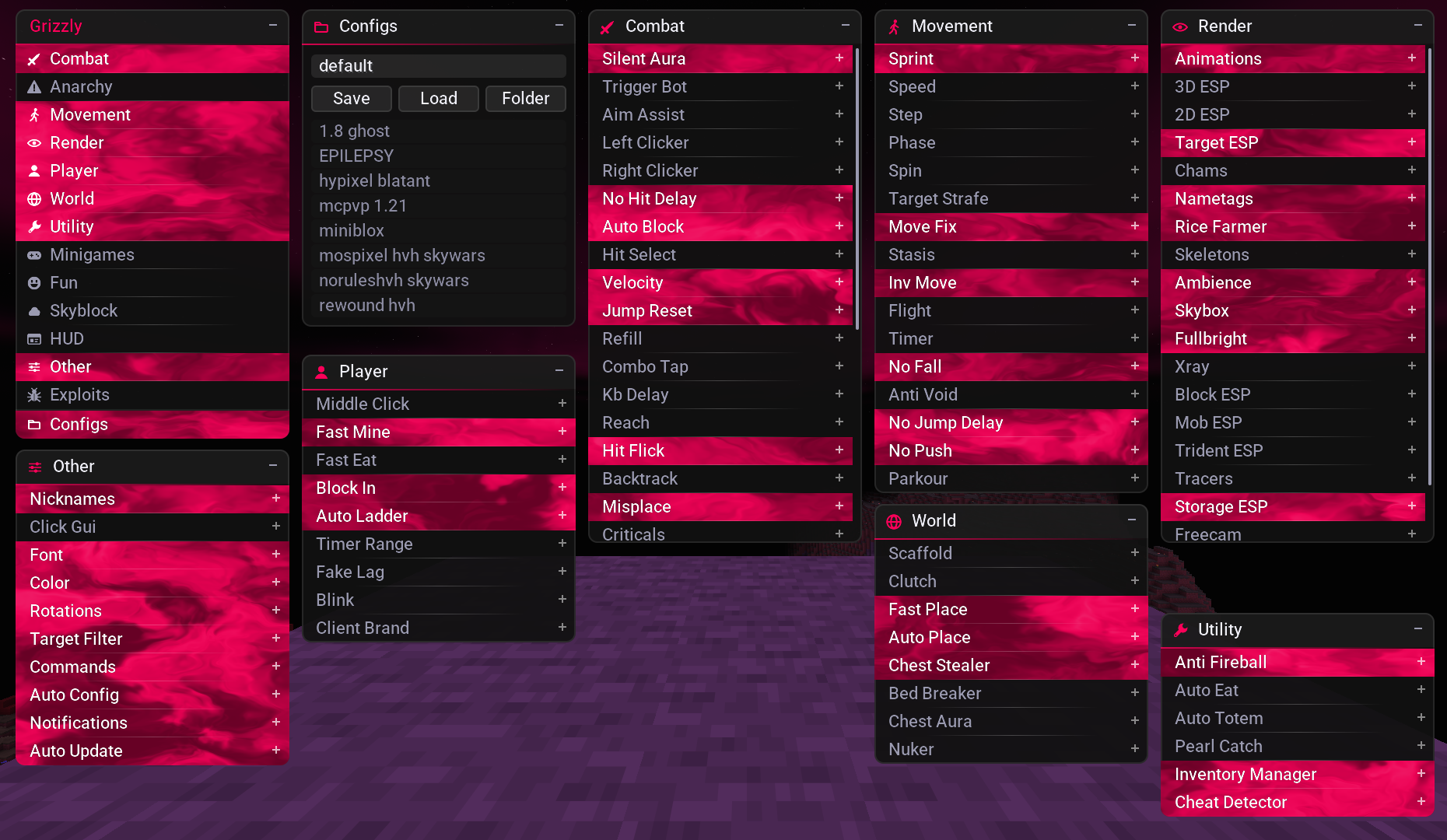
Alternate rows
Shade every other module in a panel a little darker, so rows are easy to tell apart. Enabled modules alternate between your accent colour and a slightly darker version of it.
Dividers
Put a short dash under each module and each category in the Grizzly pane, fading out toward its ends, so rows are easy to tell apart without a line cutting across the panel. Off by default.
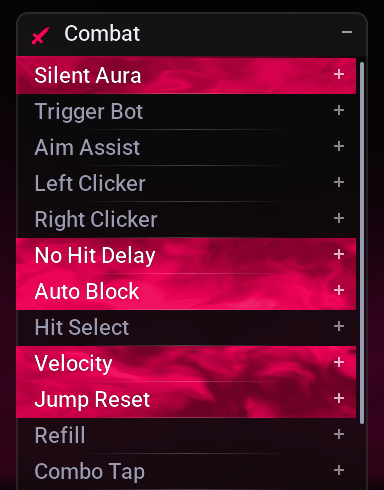
Fluid
Fill enabled modules and shown panels with smoke slowly flowing through your accent colour. Each panel has one fluid running through its enabled rows, and it moves with the panel when you drag or scroll it. Off, they get a faint wash of the colour instead. On by default.
Rounded
Round the corners of every panel. On by default.
Round radius
Corner radius in pixels when Rounded is enabled. Defaults to 6.
Panel shadow
Draw a soft shadow under every panel. On by default.
Max panel height
How tall a category panel can get, in GUI pixels, before its modules scroll instead. Scroll with the mouse over the panel. Defaults to 320.
Reset layout
Reset GUI positions to their defaults.